Notepad++ users who ran older versions or had auto-updates turned on may have been affected by a state-sponsored hacking incident in June-December 2025, which compromised the updater by redirecting requests to malicious mirrors serving unsigned installers. To identify if your installation was hit, look for unusual update dialog pop-ups with mismatched version numbers and larger installer sizes than usual. Immediate actions include downloading Notepad++ 8.9.1 from the official site, verifying its signature using the Digital Signatures tab, disabling auto-updates, and running the installer as Administrator to enforce TLS certificate validation. Additionally, if you're using a shared hosting environment, change your FTP/SFTP, SSH, and MySQL passwords immediately due to potential credential theft during the hack.
Notepad++ Hijacked by State‑Sponsored Hackers: What to Do Now
As it turned out that a handful of users had been fed malicious updates from a rogue server masquerading as notepad-plus-plus.org. The attack started in June 2025, was shut down by early December, and the Notepad++ team finally patched the updater in version 8.9.1. If you’ve been running an older version or have auto‑updates turned on, it’s worth taking a moment to double‑check.
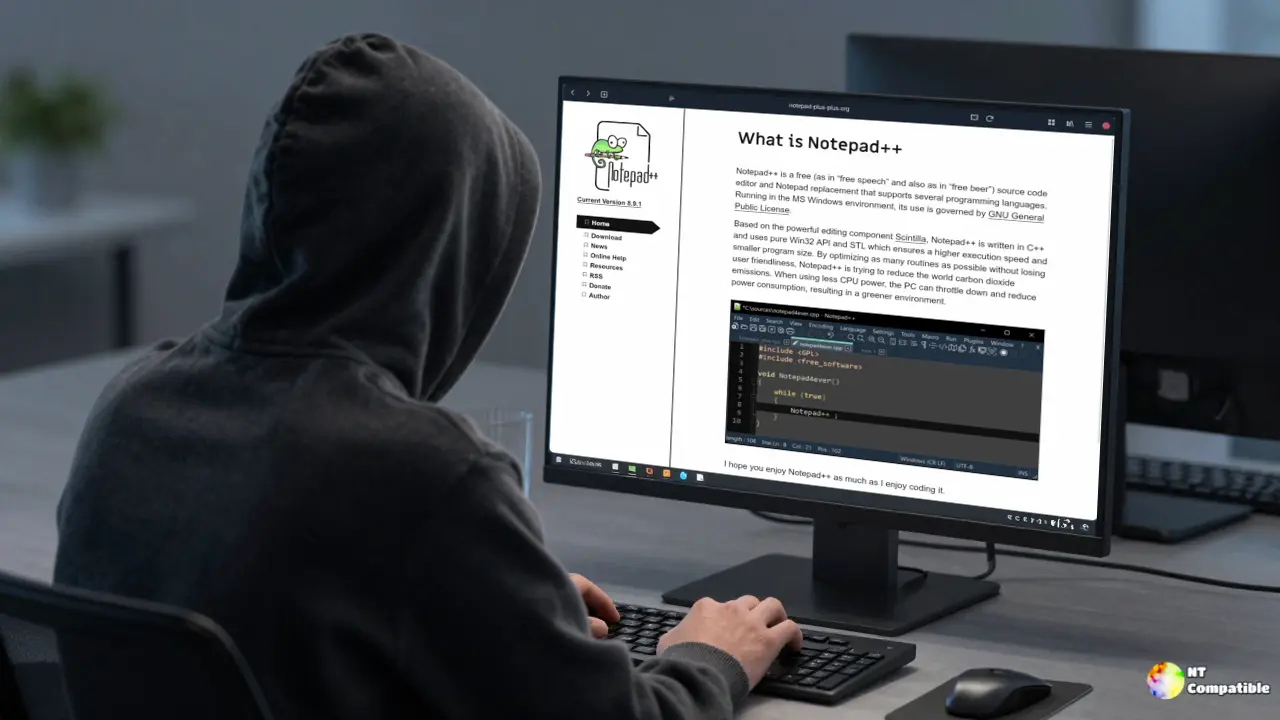
How the hijack actually worked
The attackers didn’t break into Notepad++ itself; they compromised the hosting server that delivered the update manifest. Once inside the server, they redirected requests from targeted users to a malicious mirror that served unsigned installers. Because older versions of WinGup only checked for an HTTPS connection (and not the actual certificate or signature), the rogue updates slipped through.
Signs you might have been hit
- You saw the update dialog pop up with a version number that doesn’t match what’s on the official site.
- The installer file size is off‑spec—much larger than usual for a tiny binary tweak.
- Your computer suddenly started downloading strange DLLs in the background after launching Notepad++.
If any of those feel familiar, you were likely served a bogus update between June and December 2025. The best evidence? Check the “Last Updated” timestamp on your Notepad++ installation directory; if it’s older than 8.9.1 and you haven’t manually upgraded in months, you’re probably still vulnerable.
Immediate actions to secure your setup
- Download Notepad++ 8.9.1 from the official site (not through an auto‑update).
- Verify the installer’s signature – right‑click the file → Properties → Digital Signatures tab → select “Microsoft Windows Publisher” and click “Validate.” If it says “Signature is valid,” you’re good to go.
- Disable auto‑updates until you’ve run a manual install – open Notepad++, go to Settings → Preferences → Update, uncheck “Automatically check for updates.”
- Run the installer as Administrator and follow the on‑screen prompts. The new updater will now enforce both TLS certificate validation and XMLDSig verification.
If you’re using a shared hosting environment for your own plugins or themes (rare, but some advanced users do), change all FTP/SFTP, SSH, and MySQL passwords immediately—those credentials were stolen from the compromised server until early December.
Why updating to Notepad++ 8.9.1 matters
The new release does two things that older releases didn’t: it signs the XML update manifest and verifies the certificate chain of the download URL. In plain English, it stops attackers who can simply point your computer at a fake site from fooling you into installing malware.
I’ve seen this happen after a bad driver update on a machine that had no antivirus installed—no warning, just a silent install that opened a backdoor. That’s why I personally recommend always double‑checking the digital signature when a program pops up a new version notice.
Long‑term safeguards
- Keep your system updated – Windows updates, driver patches, and especially Notepad++ itself.
- Use a reputable antivirus or antimalware scanner that checks for known malicious signatures in downloaded installers.
- Consider a local backup of your config files (the config.xml folder) before installing major updates; it’s a quick way to revert if something breaks.
- Stay alert to the news – follow the Notepad++ blog and GitHub page for any future security advisories.
That’s all you need to get back on track. Just grab version 8.9.1, verify that signature, disable auto‑updates temporarily, and you’re safe again.


