Microsoft has released KB5120998 for Windows 11, delivering builds 26200.9278 and 26100.9278 with long-awaited native taskbar repositioning across all four screen edges. The update overhauls the Start menu by renaming "Recommended" to "Recent," redesigns Windows Search with explicit source labels and auto-indexing, and introduces Microsoft Execution Containers alongside agentic process tagging for AI workloads. Enterprise admins gain rolling just-in-time admin privileges, while ML-KEM post-quantum cryptography now supports standalone TLS key exchange. However, Windows 11 24H2 Home and Pro editions hit end of support on October 13, 2026, and the legacy WMIC utility has been permanently removed from current builds.
Microsoft Windows 11 August 2026 Update (KB5120998) Preview Lands. Taskbar Finally Moves Anywhere.
The cumulative update brings production taskbar repositioning, a Start Menu overhaul, and kills WMIC, while reminding 24H2 Home/Pro users that their support clock is ticking down to October.
Microsoft has released KB5120998 preview and if you've been waiting years for the taskbar to move off the bottom of your screen, this is the one. The update ships builds 26200.9278 for version 25H2 and 26100.9278 for version 24H2, rolling out now through both gradual and normal channels. It's the first production release to finally support taskbar positioning on all four screen edges.
It's a rather significant update for what is essentially a monthly patch. The taskbar changes alone justify the install, though the broader ecosystem shifts like admin protection and execution containers point to where Microsoft is heading.
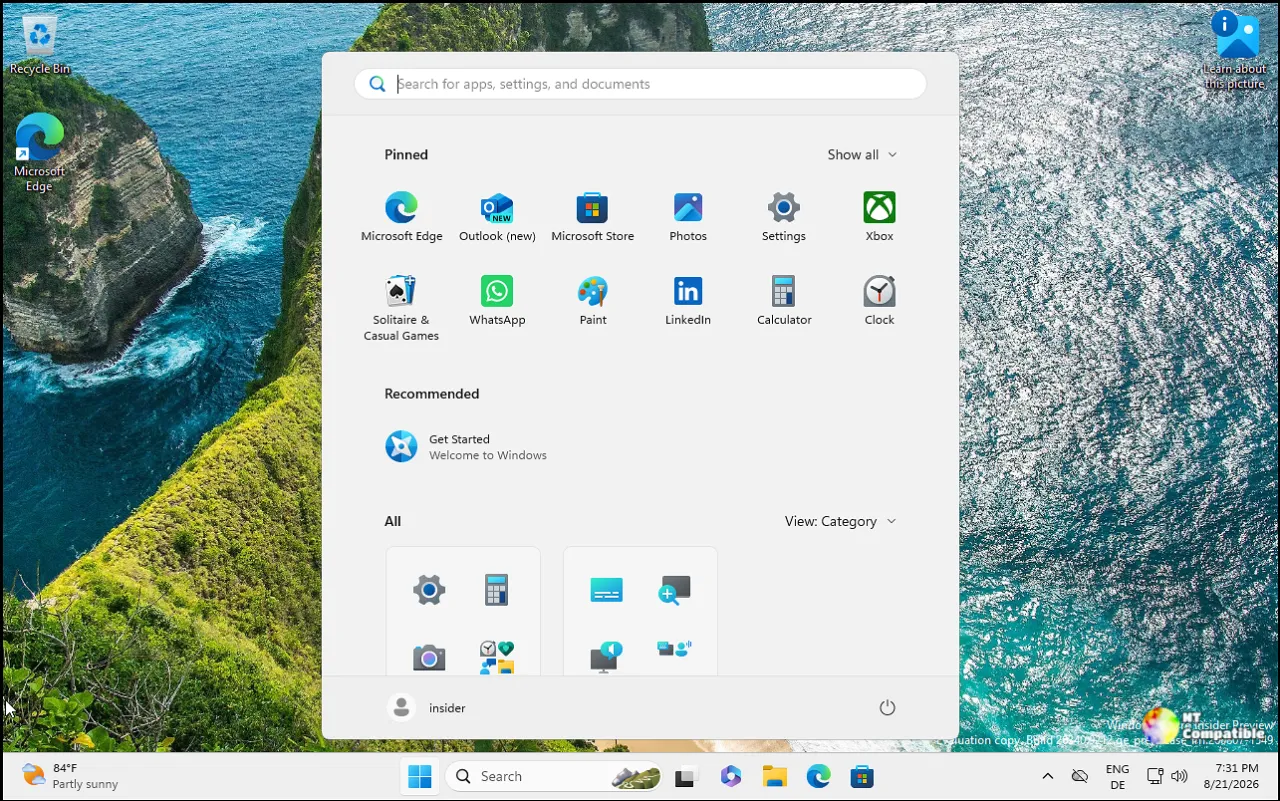
Taskbar, Start, and Search Changes
Taskbar repositioning has been the most requested Windows 11 feature since the OS launched in 2021. Third-party tools like TranslucentTB and PowerToys Fill filled the gap, but they were always stopgap measures. Microsoft waited until 25H2 to make this native, and honestly, the wait was worth it.
You can now pin the taskbar to the top, bottom, left, or right. Settings > Personalization > Taskbar > Taskbar behaviors > Taskbar position gives you full control. Keep in mind that not every customization survives the move. The compact size and search box are locked to the top and bottom positions. Also, tooltips and flyouts will still originate from the taskbar itself, which feels a bit awkward if you've moved everything to the left side of a wide monitor, but Microsoft's engineering team has noted this behavior.
If you're chasing every millimeter of vertical real estate on a smaller laptop, there's a new compact taskbar mode as well. Settings > Personalization > Taskbar > Taskbar behaviors > Taskbar size gives you a smaller icon option. It reduces the taskbar height and shrinks the icons, which helps on screens where space is at a premium.
The Start menu is getting a nudge in the right direction, too. Microsoft is finally dropping the "Recommended" label in favor of "Recent," which is honestly the only name that makes sense for a section showing what you just opened. You can also pick a small or large Start menu explicitly, rather than relying on the "Automatic" toggle. The settings page has been redesigned with independent toggles for Pinned, Recent, and All, so you don't have to hunt through sub-menus to hide your profile picture and name anymore.
Windows Search is getting a similar treatment. The home screen is simplified, and results now include explicit source labels so you know whether you're looking at an app, a file, a setting, or a web result. Microsoft has also added a toggle to disable web and Store suggestions alongside your local results, which is something you'll want to flip immediately if you prefer a cleaner search experience. Automatic indexing of your most-used folders is now a thing, which should speed up searches for files you touch constantly.
AI, Security, and Infrastructure
Microsoft is doubling down on AI infrastructure with a couple of behind-the scenes features. Microsoft Execution Containers now provide a lightweight boundary for responsive workloads like coding agents. It uses OS-level containment to restrict access to files, networking, and UI based on policy. It's positioning Windows as the sandbox layer for autonomous coding agents.
On top of that, Windows now supports opaque agent identifier tagging on process tokens. Authorized components can mark a process as "agentic," and the tag inherits to child processes. When that process authenticates via Web Account Manager, WAM includes the identifier in the request. It's a preview capability, and the format might change, but it signals that Microsoft is building the plumbing for AI agents to exist natively in Windows.
For enterprise IT shops, Admin Protection is rolling out. This enforces just-in-time admin privileges instead of giving users free-floating admin rights. It's disabled by default and enabled via Intune OMA-URI or Group Policy. Microsoft notes this isn't a formal security boundary, but it does separate profiles to harden against privilege escalation. This was previously disclosed in October 2025; now it's hitting production.
On the cryptography front, ML-KEM—the NIST-standardized post-quantum key encapsulation mechanism—can now be used as a standalone algorithm for TLS key exchange. It's not just a hybrid group anymore; it's a first-class citizen in TLS. This is a concrete step toward quantum-resistant internet infrastructure. The certificates used by most Windows devices also begin expiring in June 2026. Microsoft has been pushing updated certs over recent months, and devices that haven't received them will keep operating normally while updated certs continue arriving via Windows Update.
WMIC Dies and 24H2 Home/Pro EOL Looms
Goodbye, WMIC. The Windows Management Instrumentation Command-line utility is officially removed from Windows 11 24H2 and 25H2 starting this month. It was already absent by default on new installs, but it's no longer available as a Feature on Demand. WMI itself remains fully supported, so you can still manage systems via PowerShell or other tools. It's the end of an era for a CLI tool that dates back to the Windows XP days.
Next, the 24H2 Home/Pro end-of-life date is something you need to know about. Windows 11 version 24H2 Home and Pro editions reach end of updates on October 13, 2026. That's roughly seven weeks from now. No more fixes, timezone updates, technical support, or monthly security and preview updates for these SKUs. Enterprise and Education editions are supported until October 12, 2027. If you're running 24H2 Home or Pro, it's time to plan a migration to 25H2 or a new device.
A few other changes worth mentioning. Share window can now discover and install apps directly from the share surface for work/school accounts. Virtual desktops switch more smoothly. File Explorer Home launches faster with touch scrolling in the Recommended section. Windows Update behavior has been tweaked: PCs manually put to sleep will return to sleep after an update, even if you've set auto-sleep to "Never." Windows Autopilot device preparation device association is now generally available.
AI components have also been bumped to version 1.2608.951.0, updating Image Search, Content Extraction, Semantic Analysis, and the Settings Model. These apply only to Copilot+ PCs and won't install on regular Windows PCs or Server. If you're not on a Copilot+ device, don't worry; you'll just have to wait for your hardware to catch up.
The update is available now via Windows Update, Microsoft Update Catalog, and WSUS. Installation uses DISM or the Windows Update Standalone Installer. If you're on ARM64 or x64, you can grab it directly from the catalog. Dynamic updates require the boot.stl file in your installation media for Secure Boot validation.
Head here for the official announcement.


