WSL Manager 2.1.0 Lands on Windows with Schema-Driven AI Tool Configuration
The Windows-focused dev utility now lets you adjust OpenClaw and OpenCode settings directly from its UI.
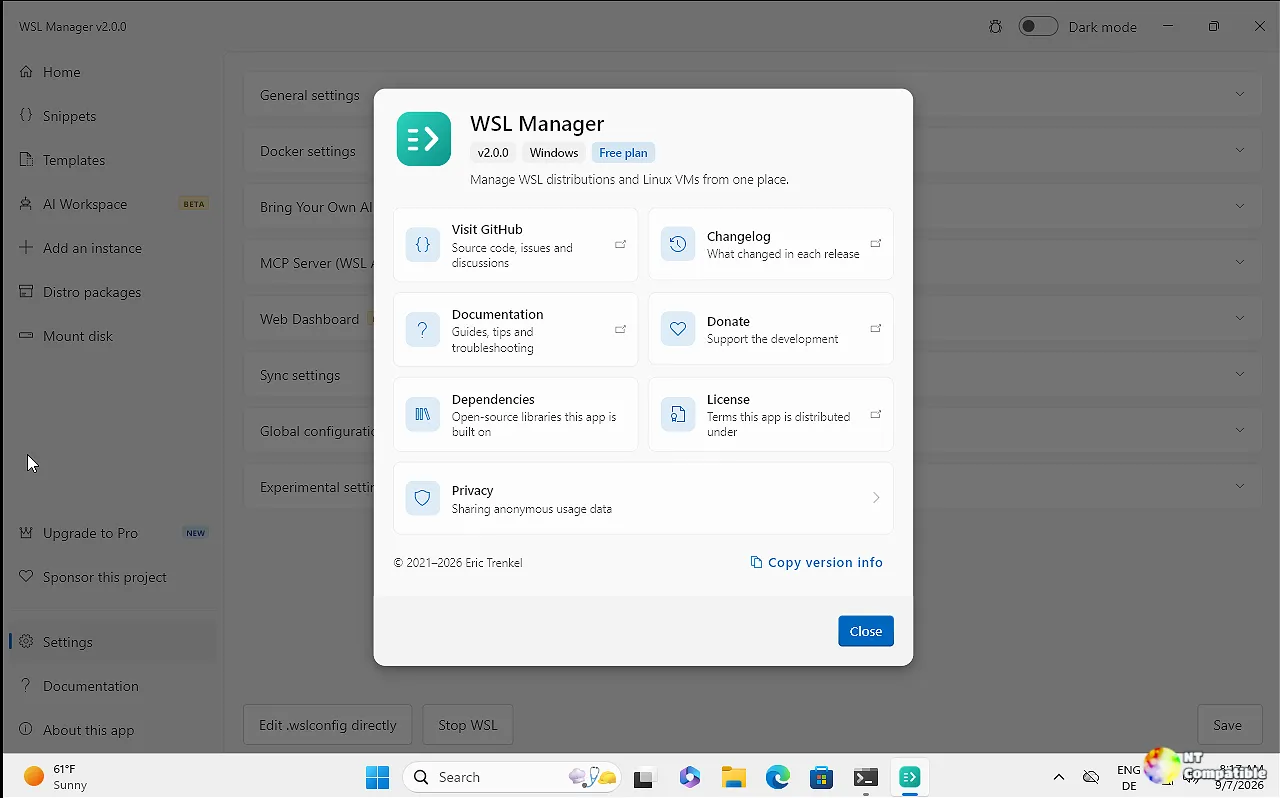
Eric Trenkel pushed WSL Manager 2.1.0 to GitHub today. The update brings the most meaningful shift to Windows WSL users in months, primarily by letting the app read AI runtime settings on the fly instead of relying on hardcoded forms.
If you have spent any real time managing WSL distros on Windows, you know how easily the command line turns into a maze of .wslconfig overrides, mount flags, and systemd workarounds. WSL Manager, built with Flutter, has been your graphical escape hatch since 2021. The core distro management stays free under GPL-3.0. AI features live behind a one-time Pro purchase.
AI Workspaces Read Their Own Config
Every AI Workspace card in 2.1.0 now ships with a Configure button. Click it and you are looking at a settings form that is generated at runtime from whatever the installed tool actually reports. There is no manually maintained list of options hiding in the code. OpenClaw publishes a JSON Schema with roughly 2,000 settings, OpenCode ships with 187. The app renders a search box and collapsible sections for both, no tweaks required on Trenkel's end.
Tools that do not publish a schema fall back to reading their existing config file. If you have never run the tool yet, the app just tells you rather than inventing keys. Only values you actually change get written back. Comments, credentials, and untouched settings stay exactly where they were. Tokens and API keys never make it into the UI. Clearing a field drops the key entirely. OpenClaw writes through its own config patch command, so the tool validates the result before the file is touched. Open WebUI shows up read-only since changing its variables would wipe the container anyway. This is a Pro feature currently marked as beta.
Windows Gets Smoother Dashboard Routing
The AI dashboard button on Windows has always worked, but the underlying routing got a cleaner pass. Previously, opening a dashboard from inside a WSL distro hit a loopback mismatch on non-Windows hosts. Trenkel rewrote the forwarding so each dashboard port routes over the existing SSH connection from the guest, reusing the tunnel while open, replacing it cleanly if it drops, and tearing it down on close. Windows WSL already shares loopback with the host, so you will notice the improvement most on remote or paired machines.
OpenClaw launches properly now as well. The start flow stops chasing a service unit that was never created, sets the gateway mode the current version requires, and persists the authentication token so the Control UI can actually find it. Existing credentials stay intact. Windows Terminal and VS Code integration remain unchanged, but the new routing means you can actually reach the AI dashboards from a fresh distro without manual port forwarding.
The schema-driven configuration approach is the smartest piece of this release. Most dev tools hardcode their settings forms, which means they break the moment a runtime adds an option. Letting the tool describe itself at runtime is a cleaner model. The MCP server also remains a standout feature. Exposing WSL to Claude Desktop or opencode at http://127.0.0.1:59133/mcp lets AI agents manage your distros, mount disks, and edit configs without you leaving your editor. Building something like that takes time. The architecture still holds up.
You can grab the new release from the Microsoft Store, winget install Bostrot.WSLManager, the GitHub Releases page, or the direct .exe installer and portable .zip archives. The Store build is Trenkel's recommended option on Windows. The Pro tier unlocks the AI workspaces, MCP server, and web dashboard. You buy it once, either through the Store or via a license key from wslmanager.com/buy.
Head here to the full changelog and the release commit. Keep in mind that the AI configuration feature is still in beta, so expect a few rough edges


