Windows 11's new cloud "rebuild" can wipe your PC without a USB stick
Microsoft expands Cloud rebuild with drive sanitization and remote IT control across four new Insider Preview builds.
Four Windows 11 Insider Preview builds hit the network on September 18th. The one most worth your attention is Cloud rebuild, which gains a secure drive-sanitization mode plus the ability to trigger a full recovery remotely.
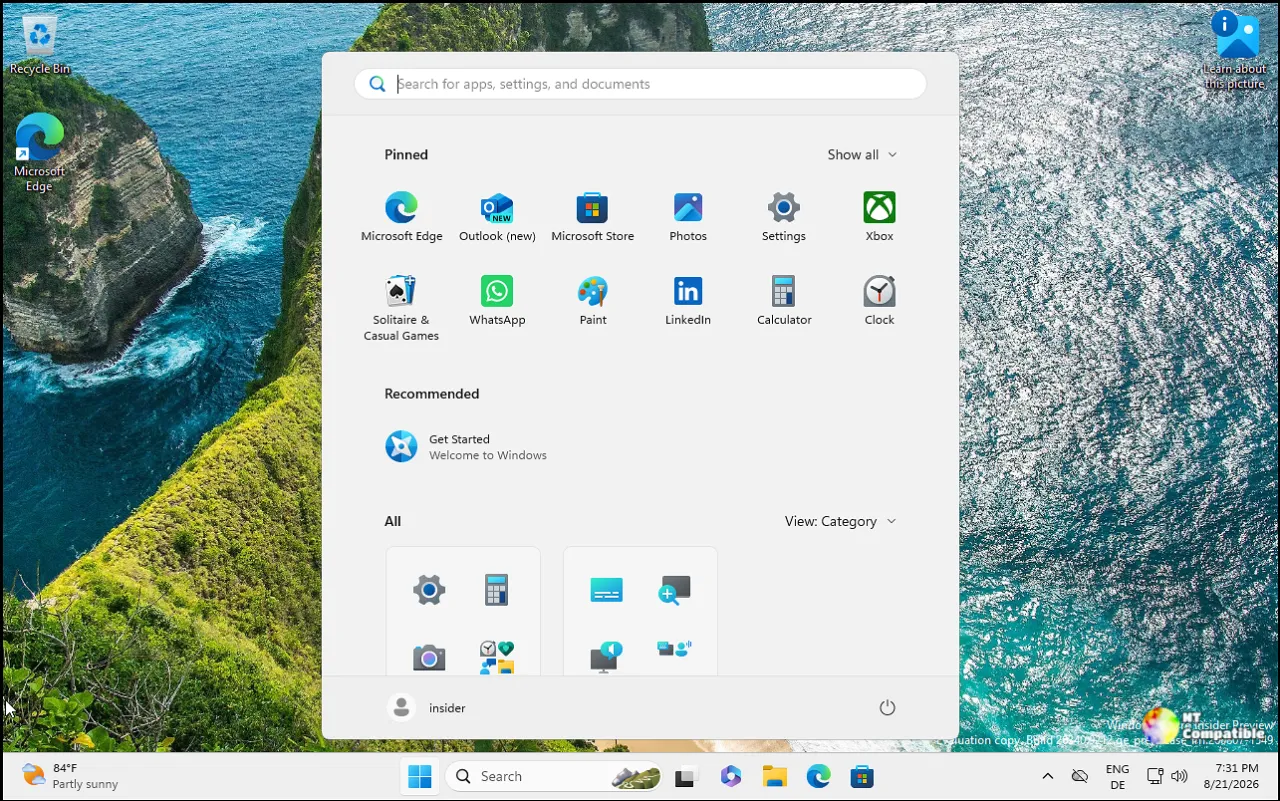
The Beta flight moved to 26220.9492, carrying near-final 25H2 content through an enablement package. The Experimental build jumped to 26340.9502 on the path toward 26H2, and it's that flight that picks up most of the Cloud rebuild additions. Keep in mind that the 26H1 branch (28120.3032) and the Future Platforms prototype (29671.1000) run on separate tracks.
If your PC won't boot, this can still pull a fresh copy of Windows and its drivers straight from Windows Update, no USB stick required. And if you're about to hand that machine to someone else, you can now wipe it before the reinstall even begins.
A cloud recovery that respects your data
Cloud rebuild first showed up as a preview in the Experimental (26H1) channel, then picked up two notable additions in the Experimental build. In short, it does a complete OS reinstall even when Windows is too broken to start. Reset this PC can't always manage that, since it leans on whatever is currently installed.
The key difference is that Cloud rebuild downloads both the target Windows image and the device's drivers from Windows Update. You walk away with a fully working machine, free of a custom image, a bootable flash drive, or a healthy current install to fall back on.
To try it, you boot into the Windows Recovery Environment, head to Troubleshoot > Recovery and uninstall, then pick Cloud rebuild. Connect over wired Ethernet or Wi-Fi, review the target build, edition, and language, and confirm the data-loss warning before it starts.
The new part is the sanitization choice. Once a rebuild begins, you pick between Remove files and Remove & sanitize files. The sanitize option uses the drive's own hardware erase capability to nuke data before Windows gets reinstalled, and Microsoft is explicit that this is irreversible. That's a genuine answer to the compliance headaches that come with recycling or reselling devices.
IT admins get their own upgrade. They can now configure and start a Cloud rebuild remotely through the Recovery CSP, targeting either the build currently installed or a fresh one they specify. It's the kind of zero-touch recovery ChromeOS fleets have used for years, and it puts Windows squarely in that race.
It's arguably the most useful enterprise-facing change here, though it only lands in the channels where your organization has placed you.
A new contrast theme and a renamed Start menu
The accessibility updates are where everyday Insiders will notice the most. A new "contrast theme" toggle in the Magnifier darkens the on-screen chrome without inverting everything else. That's the bit people actually care about. Color inversion changes the colors of your photos, charts, and videos too, which mangles anything meant to look real.
Flip the toggle on from the Magnifier toolbar and you get a darker interface while media keeps its original colors. A dark theme is applied by default, and you pick which contrast theme the button cycles to under Settings > Accessibility > Magnifier. But color inversion isn't going away. Microsoft built the contrast theme as a separate, purpose-built option rather than a replacement.
There's also a slicker animation for the Mouse pointer indicator, plus a new option to keep that "find my cursor" cue live until you press Esc. Live Captions gains an "Include Screen Reader audio" setting, off by default, so it won't duplicate your Narrator, JAWS, or NVDA voice on screen.
Then there's the Start menu, which has been Microsoft's longest-running experiment in UI churn. It changes more often than most people realize, and not always for the better. The Future Platforms build renames "Recommended" to "Recent" and adds per-section toggles so you can show or hide Pinned, Recent, and All independently. You can also pick Small or Large for the menu's size, hide your name and profile picture, and you'll find a redesigned Start settings page.
For what it's worth, swapping "Recommended" for "Recent" reads as a clean signal. Microsoft keeps dialing back the algorithmic surface in favor of something you actually control, and the new toggles hand you far more knobs than before.
Bugs, fixes, and the usual caveats
The fixes this round are small but welcome. All four builds repair a Plan 9 share issue that broke folder access between Windows hosts and Linux virtual machines under Hyper-V. The Beta and Experimental channels fix a File History backup failure that threw a confusing "No usable drives found" error, and the Future Platforms build resolves a freeze that hit some Insiders whenever a UAC prompt popped up. The Easy Anti-Cheat crash in the 26H1 channel is now marked resolved, by the way.
Not everything is smooth, though. Microsoft is working on a fix for decreased performance that gets worse the longer you run the latest builds, and it's investigating VMware Workstation Pro blank windows and stray green screens. Standard preview rules still apply. The desktop watermark is normal, previewed features can change or vanish entirely, and most Experimental features ship under Controlled Feature Rollout, meaning a feature sitting in your build today isn't guaranteed to reach you tomorrow.
Windows 11 Insider Beta Preview Build 26220.9492 - Windows Insider Program
Release notes for Windows 11 Insider Beta Preview Build 26220.9492
Windows 11 Insider Beta Preview Build 26220.9492 - Windows Insider Program
Windows 11 Insider Experimental Preview Build 26340.9502 - Windows Insider Program
Release notes for Windows 11 Insider Experimental Preview Build 26340.9502
Windows 11 Insider Experimental Preview Build 26340.9502 - Windows Insider Program
Windows 11 Insider Experimental (26H1) Preview Build 28120.3032 - Windows Insider Program
Release notes for Windows 11 Insider Experimental (26H1) Preview Build 28120.3032
Windows 11 Insider Experimental (26H1) Preview Build 28120.3032 - Windows Insider Program
Windows 11 Insider Experimental (Future Platforms) Preview Build 29671.1000 - Windows Insider Program
Release notes for Windows 11 Insider Experimental (Future Platforms) Preview Build 29671.1000


