Fort Firewall 3.20.6 brings back the old-school "Ask to Connect" prompt
Fort Firewall 3.20.6 launched today. The newest feature is a deliberate throwback: a per-connection prompt that asks before your programs connect.
Fort Firewall 3.20.6 is out now, landing as the latest in what has been an unusually fast release burst. The headline add is the "Ask to Connect" filter mode, which does exactly what it sounds like. When a program reaches for the network, Fort pauses that connection and shows you a prompt. Block it, allow it once, or allow the whole process for a set window.
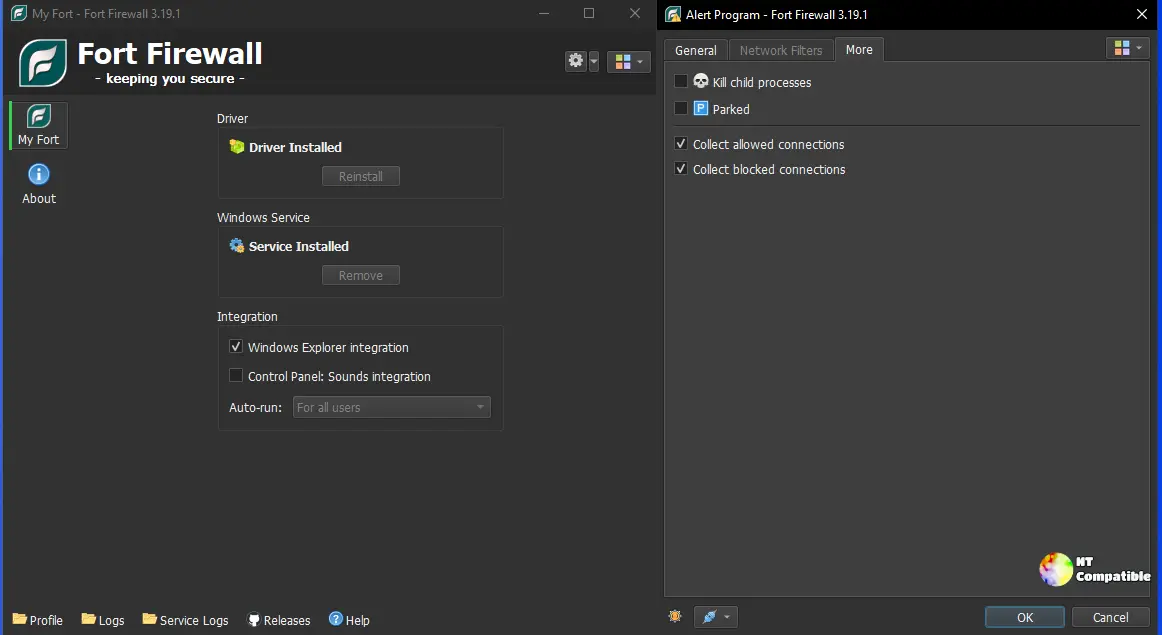
For those unfamiliar, Fort is a standalone, per-application firewall for Windows 7 and up. It doesn't just watch ports. It figures out which executable is behind a connection and then lets you allow, block, pause, or kill that program's network access. It's free, open source under GPL-3.0, and maintained by one person, Nodir Temirkhodjaev. The project's GitHub sits at roughly 3,600 stars. Temirkhodjaev appears to be based in Uzbekistan, though that's a reasonable guess from public signals rather than a confirmed biography.
The thing that makes Fort stand out is that it runs its own kernel-mode driver. Rather than leaning on Microsoft Defender Firewall, Fort installs fortfw.sys, a signed WFP callout driver that enforces policy at the highest privilege level in the system. The FAQ is blunt about the arrangement: "You do not need to keep the Windows Firewall enabled and running together with Fort."
It's powerful. It's also a lot to swallow.
The "Ask to Connect" mode, and why it matters
Fort already had a process mode that decides between Auto-Learn, Block-if-not-allowed, and Allow-if-not-blocked. The new Ask to Connect mode is different, because it reintroduces the interactive prompt. When an unknown program tries to reach the network, Fort pauses the connection and shows you a window. Block it, allow it once, or allow the process for a set window.
You can allow once, block once, or allow the process for anywhere from 10 seconds to 6 hours. Leave it idle and the default 30-second timer runs out, then the connection gets dropped. Up to nine outbound and one inbound connection can be paused at once. Anything past that is silently dropped until the program retries.
It's the "prompt like the good old days" behavior, and it's exactly what privacy-focused users have been asking for. Long threads behind per-program rules and text-based rules show the developer has a habit of actually reading what people want and building it.
The 3.20 line has moved fast to get here. Six releases in three weeks: 3.20.0 on October 4, then nearly daily up to 3.20.6. The previous 3.19 line lingered for about a year in 2025 before this burst. If you've watched Fort over the past few weeks, you'll recognize the pace.
The trade-off you should know about
Here's the part reviewers will poke at. On Windows 10 and later, Fort needs Memory Integrity turned off.
The developer lays it out honestly in the docs: "Turning Memory integrity off removes a layer of kernel protection. If your organization's policy requires HVCI, get approval first."
Why? Fort's driver creates a memory region that's both writable and executable, because it loads its driver image at runtime. Windows Core Isolation (Memory Integrity) forbids exactly that kind of memory. Leave it on and you're looking at a BSOD. The developer tried to work around it via attestation signing with a new EV certificate. That didn't pan out, per discussion #108.
So yes, it's a genuine trade-off. You get fine-grained control at the cost of one of Windows' more modern kernel protections. If you're running a locked-down machine, weigh it. If you're a power user who wants to know what every program does, it's arguably worth it. Fort is one of the few tools that bundles its own driver, per-program rules, speed limiting, groups, schedules, downloadable blocklists, and a separate service, all at once. The rest of that combo tends to be spread across a half-dozen apps.
Other bits in 3.20.6: an Internet "Allow Addresses" option under IP Addresses, and SQLite bumped to 3.54.1. Nothing earth-shaking alongside Ask to Connect, but a tidy update.
Data stays local. Config, logs, and statistics live in %ProgramData%\Fort Firewall when the service is installed, or in a self-contained folder in portable mode. Nothing phones home to the developer's servers by default, so telemetry is a non-issue by design. The one real caveat: you can configure downloadable blocklists from arbitrary URLs, which means trusting those remote sources. Set up Zones carefully.
Fort also runs natively on ARM64, with x86 and x64 builds available for Windows 7 through 11. Note that the x86 installer needs the x86 redistributable even on 64-bit systems. And Windows 7 users need KB4474419 for SHA-2 driver signing.
Head here to the release page for the full changelog.


